


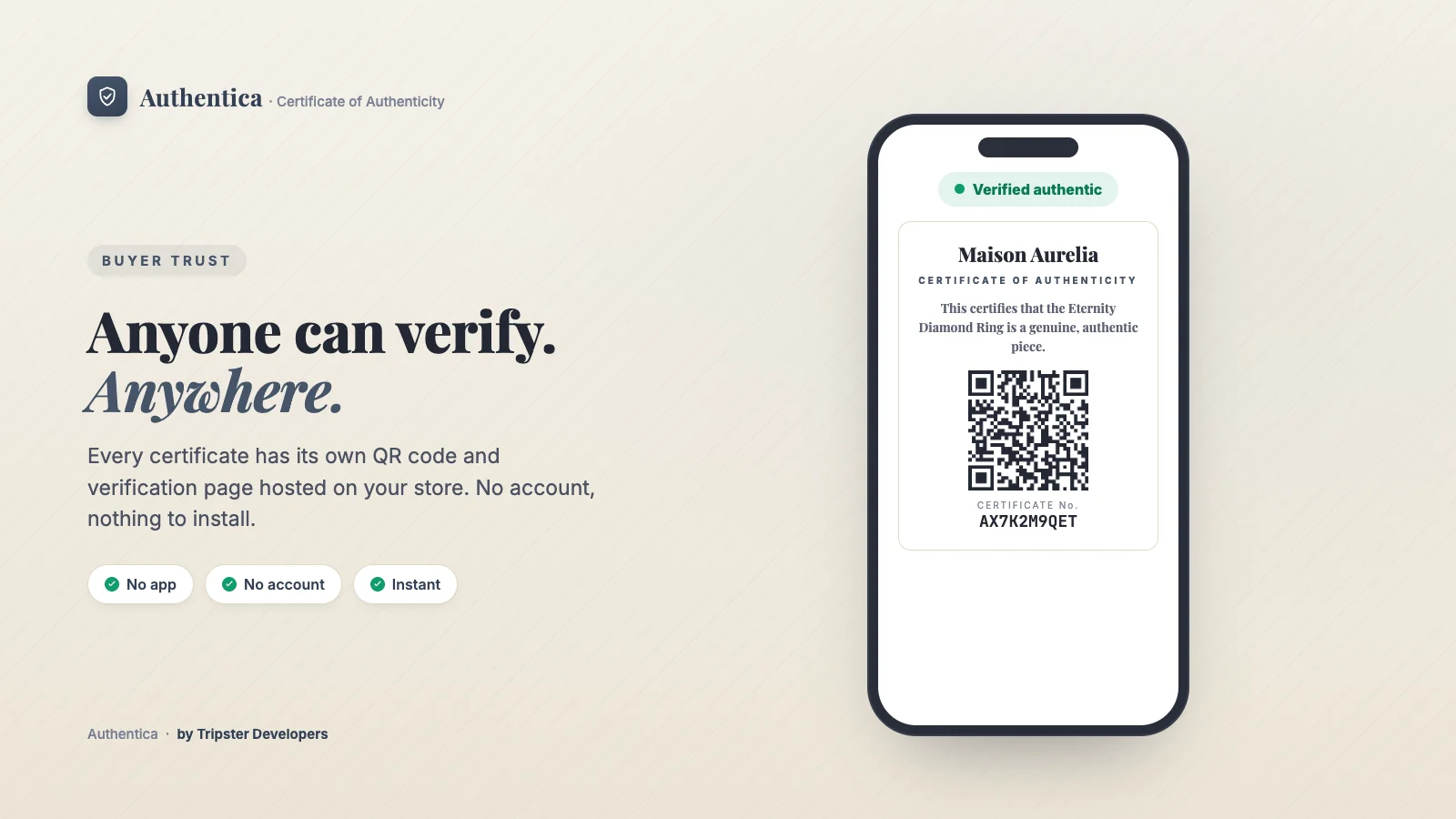
Every certificate has its own verification page, hosted on your store via the Shopify app proxy, and its own QR code. A buyer scans the code, or opens the link, and sees the certificate rendered with a clear "Verified authentic" state, no login and nothing to install.
Where to find it
Verification pages live on your own domain under /apps/authentica/. Open any certificate in Apps → Authentica → Certificates to see its link and QR code.
How to set it up
Nothing to switch on
Every certificate gets its page and QR code the moment it is issued.Choose the page language
In Settings → Verification page language, leave Auto or pick one language for every buyer.Get the QR to buyers
Email the certificate, print QR labels or a packing slip QR, or write the link to an NFC tag.
Options
| Setting | What it does |
|---|---|
| Verification page language | Auto shows each buyer their own browser language, falling back to English. Available languages: English, German, Spanish, French, Italian, Portuguese, Dutch, Japanese, Chinese and Arabic. |
| White-label verification page | Removes Authentica branding from the verification page (Pro). |
Plan required
Related articles