


Two ways to put a scan-to-verify QR code in the parcel:
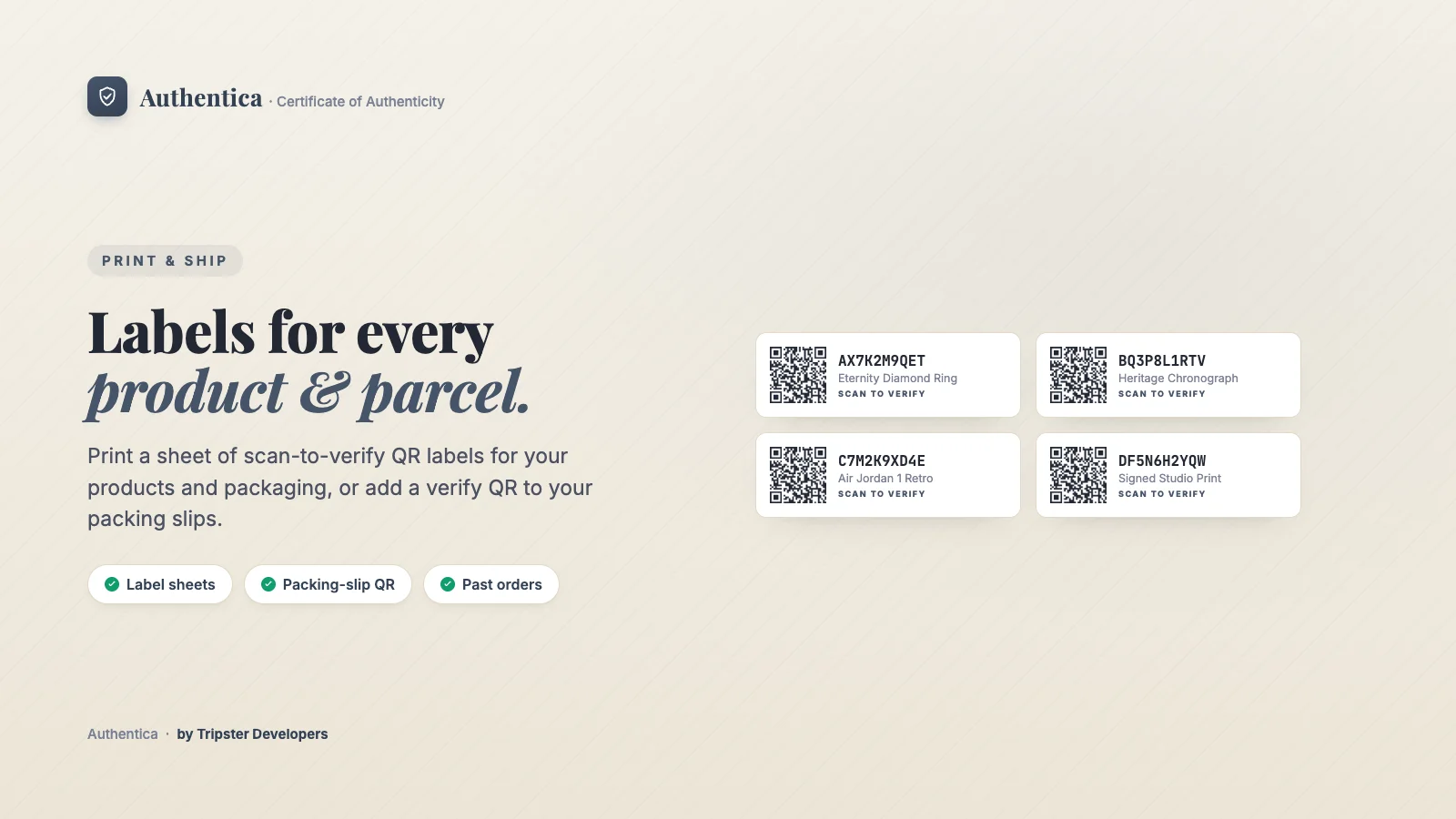
- Printable QR labels: generate scan-to-verify labels for issued certificates to stick on products or packaging.
- Packing slips: copy the provided Liquid snippet into Settings → Shipping and delivery → Packing slips to add a verify QR code that appears in the box.
Where to find it
Apps → Authentica → QR labels and Apps → Authentica → Packing slips.
How to set it up
QR labels
Open QR labels
Each label shows the serial, the product and the order number, so you can match the right label to the right package.Filter
Filter by serial, product or order to print only the labels you need.Print labels
Your browser's print dialog opens, so you can print directly or save as PDF.
Packing slips
Copy the snippet
In Packing slips, use Copy snippet.Edit your packing slip template
In your Shopify admin, go to Settings → Shipping and delivery, and under Packing slips choose Edit packing slip.Paste and save
Paste the snippet inside the template body and save. Print any order's packing slip to see the QR, which opens a summary of every certificate on that order.
Plan required
Related articles